Install the Embed Code
Add Nizam to your website once, and every element you create will work on every page. Each element's page also covers this step.
The embed code is a short piece of code that loads Nizam on your website. You add it once, to the part of your site that loads on every page. After that, any element you create in the dashboard can appear on your site without touching the code again.
Copy Your Embed Code, copy link to this section
Go to Settings → Website in your dashboard. Under Embed code, click the code to copy it. It starts with <!-- Nizam: Fundraising, engagement and analytics -->.
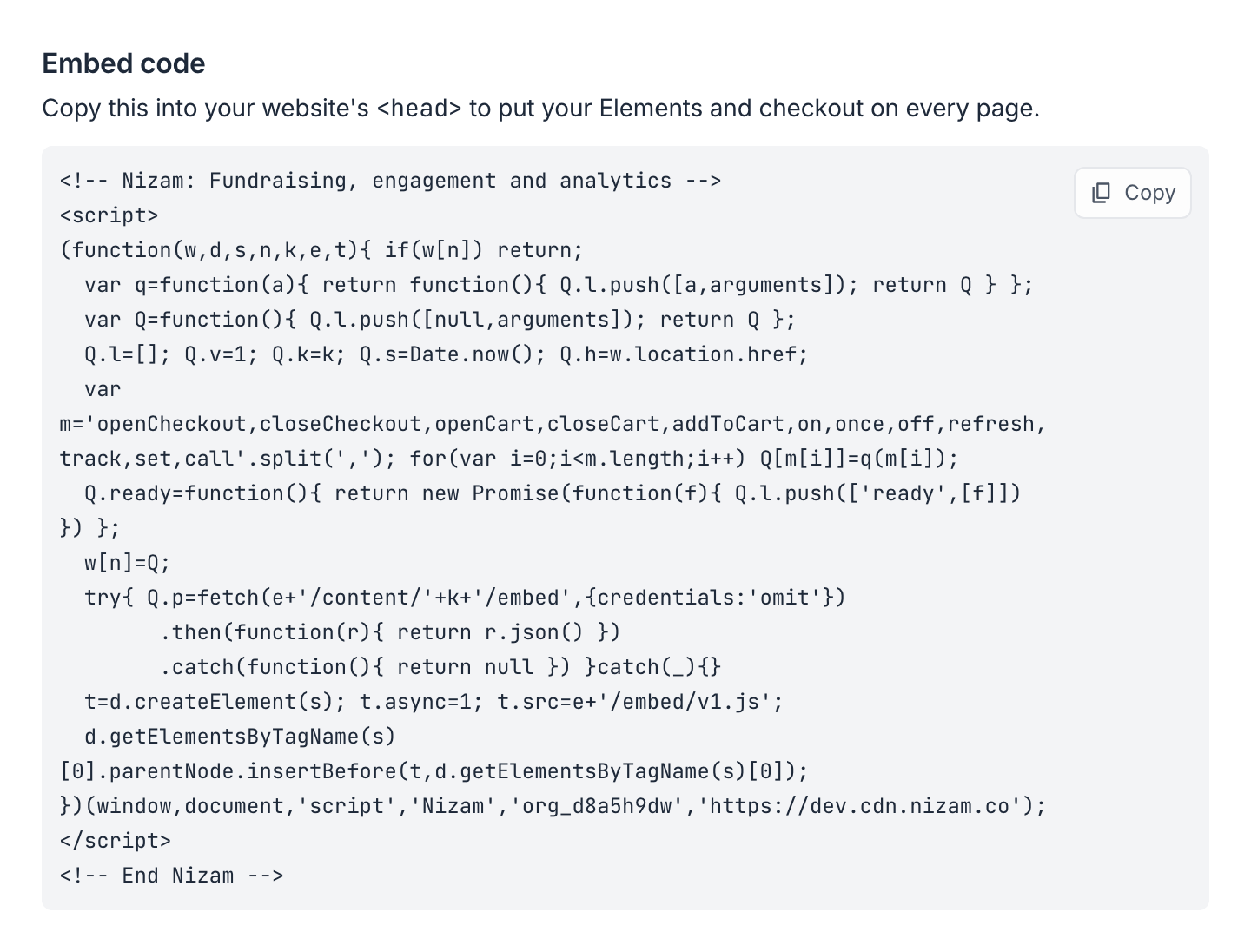
The code is unique to your organization. Copy it from your dashboard each time rather than reusing code from another site.
Add It to Your Website, copy link to this section
Paste the embed code into your site's <head>, the section that loads on every page. Choose how your website is built:
- Install a header code plugin, such as WPCode.
- Open the plugin's Header & Footer settings.
- Paste the embed code into the Header box.
- Click Save Changes.
If you're comfortable editing your theme, you can paste the code just before </head> in your theme's header file instead.
You only need to add the code once. Next, give donors something to click: add a Donate button, a campaign grid or a sticky donate tab.
Check It Works, copy link to this section
- Open a page with one of your elements in a private or incognito window.
- Check the element appears where you expect.
- Click it. The checkout opens over your page.
- Choose an amount and continue. You don't need to finish the gift.
Once a donation has started in checkout on your site, your site's address appears under Settings → Website → Embed installs. Apple Pay and Google Pay are set up for that address automatically, so donors there see them from then on.
Troubleshooting, copy link to this section
Nothing appears. Check the embed code is in the header of the page you're looking at, and that you saved and published your site. Then check the element is on that page. A Button or Grid needs its tag on the page.
You see an old version of the page. Caching plugins and services can keep serving a copy of your site from before you added the code. Clear your site's cache, then reload.
Your site removes the element's tag. Some website builders strip code they don't recognize. Use a link instead, as described in Add a Donate button.
A Sticky Button, Social Proof or Reminder doesn't show. These appear without a tag, based on their Visibility settings. Check the element is Active and that its devices, pages and schedule include the page you're viewing.
Your site has strict security settings. If your site sends a Content Security Policy, it can block Nizam from loading. Send your web developer the developer guide so they can allow Nizam.
An ad blocker is on. Some browser extensions block scripts from other websites. Test in a private window with extensions turned off.
Still stuck?
Send us the address of the page and we'll take a look. Get in touch →